Searching in Preservica
Austin Community College (ACC) uses Preservica for its historical items that have been digitized. It has a strong search function built in that will not only search metadata fields, but also within the documents to return results for keywords that are entered. This guide will provide information on how to do searches within Preservica to maximize results.
Basic Search
On the home page, there is a general search bar at the top of the page. Enter the term or terms you are searching for, then click on the “Search” button to the right of the search bar.
Searching can be a single word, or multiple terms. There are rules with using multiple terms or words:
Boolean Search
This search allows for use of multiple terms using AND, OR, or NOT. You can also search for an exact phrase using quotation marks, or group terms using parentheses.
| Operator | Example | Description |
|---|---|---|
| AND | marketing AND sales | Returns results containing both terms |
| OR | English OR Spanish | Returns results with either term |
| NOT | Apple NOT fruit | Excludes the term after NOT |
| ” “ | “Artificial Intelligence” | Searches for an exact phrase |
| ( ) | (Cats OR Dogs) AND Rescue | Groups terms for order of operations |
Advanced Search

Preservica also allows for an advanced search of the metadata fields. The archive uses Dublin Core (DC) for metadata. With advanced search, you can create filters for searches. It is key to note that searching metadata fields will not perform a text search in documents themselves. Advanced search is best for photographs or other non-text documents.
To start an advanced search, select the metadata field that you are searching for. The following Dublin Core fields are available:
DC: Contributor — People or organizations that contribute to the creation of the object, such as authors of articles in a news publication.
DC: Coverage — Usually a date range or location that the object represents.
DC: Creator — The primary creator of the object, usually a person or organization.
DC: Date — The date or date range that the object was created.
DC: Description — A description of the object.
DC: Format — The format of the digital object, such as “image/gif” or “text/pdf”.
DC: Identifier — A unique identifier given to the object by the archive.
DC: Language — The primary language of a document, such as “English (US)” or “Spanish”.
DC: Publisher — The publisher of the object, either a person or organization.
DC: Relation — The relationship to other objects of the same nature in a collection.
DC: Rights — The rights statement for the object.
DC: Source — The call number, box number, or folder where the object resides outside of Preservica, such as A-2-3.001 (box.folder).
DC: Subject — Keywords about the object.
DC: Title — The title of the object.
DC: Type — The description of the object regarding its digital or physical form, such as “text,” “image,” “sound”.
Once you have added your filters, click “Show results” to run the search. You can save your filters by clicking “Save filter”, or remove them by clicking “Clear filters”. To add additional filters, click the “+Add” button.
Text Search Within Documents
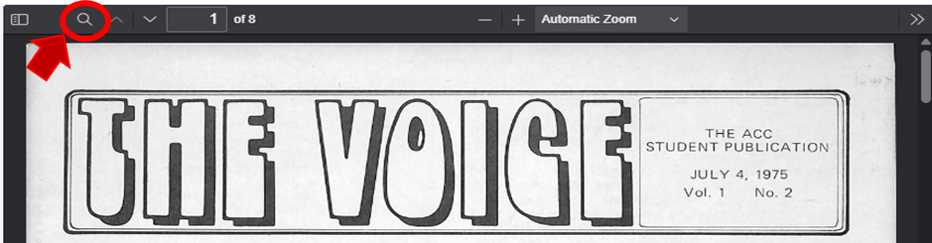
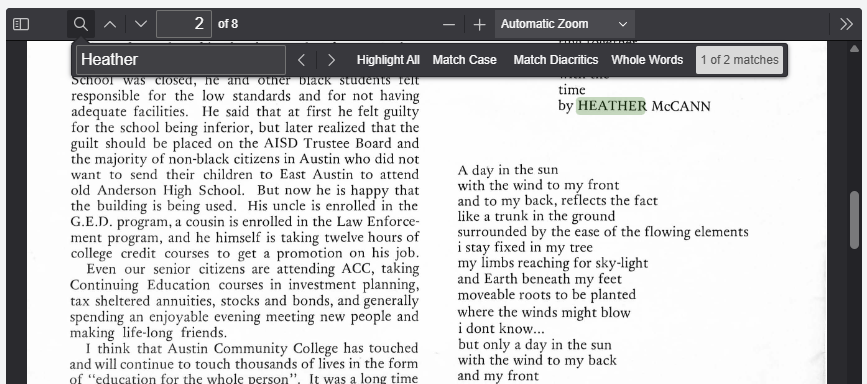
Once you open the page of the text document you want to view, you can perform a search within the document using the search terms. Click on the magnifying glass icon at the top of the document viewing pane. This will open up a search bar. Type in your search term. All words matching the search term will then be highlighted in green.